

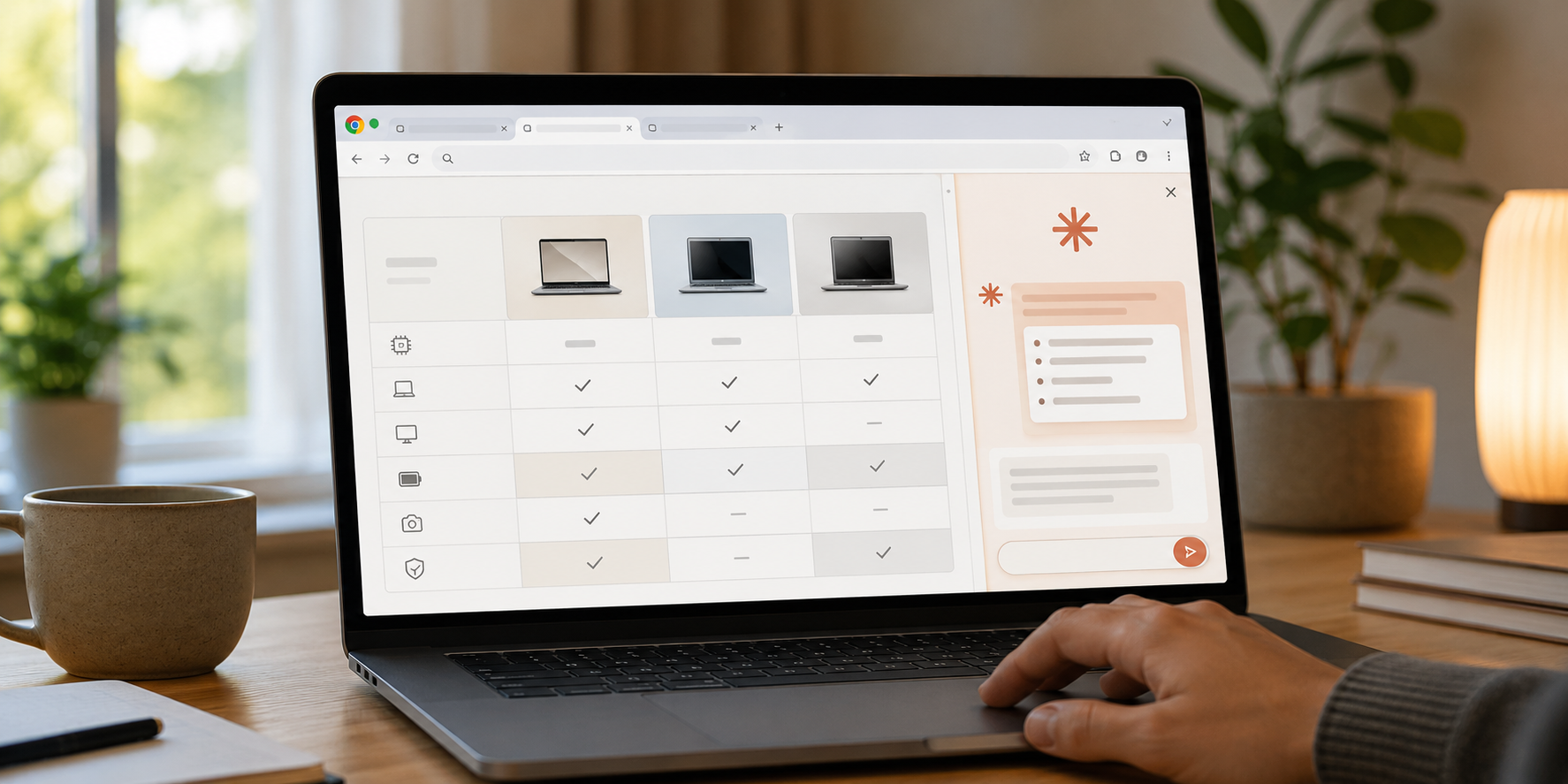
You’re halfway through comparing three product pages when the usual routine begins: copy a paragraph, switch tabs, paste it into Claude, return to the website, and repeat. It works, but after the fifth round it starts to feel strangely old-fashioned.
Claude in Chrome is meant to remove that back-and-forth. The browser extension places Claude beside the webpage you’re viewing, allowing it to read pages, move between tabs, click buttons, type into fields, and help with multi-step browser tasks.
If you’re wondering how to use Claude in Chrome without giving an AI tool more control than necessary, the sensible approach is simple: begin with harmless tasks, watch what it does, and expand permissions only when you feel comfortable.
What Is Claude in Chrome?
Claude in Chrome is Anthropic’s official browser extension for Google Chrome. It opens Claude in a side panel, so you can ask questions or assign browser tasks without leaving the page in front of you.
Anthropic made the extension generally available across its paid Claude plans on August 26, 2026. According to the official Claude in Chrome announcement, the extension can interact with websites using your existing browser session and logins.
It can perform actions such as:
- Reading and summarizing webpages
- Moving between open tabs
- Clicking links and buttons
- Typing text into website fields
- Filling out suitable online forms
- Comparing information across several pages
- Collecting details for research
- Running longer tasks while you continue browsing
- Repeating saved workflows through shortcuts
That sounds powerful because it is. It also means you should treat the extension differently from an ordinary chatbot. A chatbot gives you an answer. A browser agent may actually change something on a live website.
Who Can Access Claude in Chrome?
Claude in Chrome is currently available with paid Claude subscriptions, including:
- Claude Pro
- Claude Max
- Claude Team
- Claude Enterprise
It isn’t included with the free Claude plan at the time of writing.
The extension supports Google Chrome on desktop. Anthropic says it doesn’t currently work on mobile devices or other Chromium-based browsers. That means using Chrome itself is important; installing it through Edge, Brave, or another Chrome-like browser may not work.
Features can also differ by plan. Some users may see Claude Cowork sessions inside the browser panel, while others may temporarily see the classic side-panel experience as the rollout continues.
How to Install Claude in Chrome
The setup only takes a few minutes, but make sure you’re installing the official extension. Browser stores are full of similarly named tools, and this isn’t the place to take a chance on an unknown publisher.
Step 1: Open the Official Installation Page
Start with Anthropic’s Claude in Chrome page or its official setup guide.
Follow the link to the Chrome Web Store rather than searching for a random download elsewhere. Check that the extension publisher is Anthropic before installing it.
Step 2: Select Add to Chrome
Click Add to Chrome, then review the permissions shown by the browser.
The extension needs permission to view and interact with webpages because that is how it reads content, clicks buttons, and completes the tasks you provide. Don’t approve the request automatically. Read it first so you understand what access is being granted.
Step 3: Sign In to Claude
After installation, sign in using the Claude account connected to your paid plan.
If the extension says the feature isn’t available, confirm that you’re using the correct account. People with separate personal and work accounts can easily sign in to the wrong one without noticing.
Step 4: Pin the Extension
Click the puzzle-piece icon in the Chrome toolbar and pin Claude.
The Claude icon will remain visible near the address bar. Clicking it opens the side panel beside your current webpage.
Step 5: Open the Side Panel
Visit a simple public webpage and click the Claude icon. You should see a chat panel appear on the side of the browser.
Start with an easy request, such as:
“Summarize the main points on this page in five bullets.”
This confirms that the extension can read the current page before you ask it to perform a longer workflow.
Anthropic provides the complete installation process in its official Claude in Chrome setup guide.
What Can Claude See in Your Browser?
Claude can read the tab you’re currently viewing. It can also work across tabs within the same tab group when a task requires information from more than one page.
Imagine that you’re comparing three project-management tools. Open each pricing page in the same tab group, then ask:
“Compare the monthly price, free-plan limits, storage, and team features shown across these tabs. Put the results in a table.”
Claude can examine the open pages and organize the differences without requiring you to paste each page into a separate chat.
But access to a page matters. If you’re signed in to a website, Claude may be able to interact with the version of that page available through your account. That’s useful for internal dashboards and online tools, though it also makes careful permission management important.
Useful Tasks to Try First
The best first tasks are clear, reversible, and easy to check. You don’t need to begin by handing Claude control of a complicated company dashboard.
Summarize a Long Webpage
Open an article, documentation page, or public report and ask Claude to extract the important points.
A useful prompt might be:
“Summarize this page for a beginner. Include the main argument, three supporting points, and any limitations mentioned by the author.”
Check the summary against the page. This helps you learn how well Claude understands the content without allowing it to make any changes.
Compare Several Tabs
Claude in Chrome can reduce the headache of jumping between similar pages.
For example:
“Compare the features and restrictions on these three pricing pages. Use only information visible in the open tabs and flag anything that isn’t clear.”
The phrase “use only information visible in the open tabs” keeps the task focused and makes the result easier to verify.
Collect Research Notes
Suppose you’re researching software for a small business. You could open several product pages and ask Claude to create a short list containing:
- Product name
- Intended audience
- Main features
- Starting price
- Free trial availability
- Important limitations
You should still verify the details before making a purchase. Prices change, plan descriptions can be vague, and an automated browser may occasionally misread a page.
Fill a Draft Form
Claude can help place information into form fields, but use a draft or low-risk form while learning the feature.
You might ask it to fill in a public contact form using text you’ve already approved. Review every field before allowing the form to be submitted.
And be specific:
“Enter the details into the form, but don’t submit it.”
That last part matters. It creates a clear stopping point where you can check the work yourself.
Create a Reusable Shortcut
If a prompt works well, you can save it as a shortcut and use it again.
A content manager, for example, might create a shortcut that checks a competitor’s blog, pricing page, and careers page for visible changes. A shopper could save a comparison format for products. A student might use one to collect definitions from assigned online readings.
Type / in the Claude side panel to view saved shortcuts. You can edit or remove them if the workflow changes.
How Browser Actions and Approvals Work
Claude in Chrome uses permission controls to decide when the extension can act and when it needs you to approve something.
The newer experience may automatically continue through actions that its safety system considers low risk. Anthropic says a classifier checks an action before it runs and compares it with your original request. If an action doesn’t match what you asked for, it can be blocked.
You can change the approval behavior in the extension settings if you’d rather review actions more frequently.
Automatic approval saves time on a long task, but manual oversight is still a good choice while you’re learning. Watching the first few workflows makes it easier to notice whether your instructions are too broad.
For example, “Clean up my inbox” leaves far too much room for interpretation.
A safer request would be:
“Find promotional emails received during the last seven days and create a list of the senders. Don’t delete, archive, forward, or reply to anything.”
The second prompt defines both the task and the boundaries.
Why Prompt Injection Is a Real Concern
Prompt injection sounds technical, but the basic idea is easy to understand.
A malicious website, email, or online document may contain hidden instructions aimed at the browser agent rather than the person reading the page. Those instructions might try to persuade Claude to ignore your request, reveal information, or perform an unrelated action.
You may never see the hidden text yourself.
Anthropic says it uses trained defenses, content probes, and action classifiers to reduce this risk. Still, the company’s own Claude in Chrome safety guidance warns that browser-based AI carries inherent risks.
Safety systems help, but they don’t turn every webpage into a trusted environment.
Practical Safety Rules Worth Following
A little caution goes a long way here.
Keep It Away From Sensitive Accounts
Don’t use the extension for online banking, health records, tax portals, password managers, or other accounts containing highly sensitive information.
Even if a task sounds harmless, opening those pages may expose information you wouldn’t normally share with an assistant.
Don’t Enter Passwords Through Claude
Sign in yourself. Never ask Claude to type, store, copy, or retrieve your passwords.
The same rule should apply to security codes, recovery keys, banking PINs, and private authentication details.
Review Before Submitting
Pause before any action that sends, publishes, purchases, deletes, or changes something important.
That includes:
- Sending an email
- Publishing a post
- Submitting a form
- Deleting a file
- Changing account settings
- Approving a payment
- Inviting a new user
- Updating website permissions
A draft can be repaired easily. A published or submitted action may be harder to reverse.
Set Clear Boundaries in the Prompt
Tell Claude what it can do and where it should stop.
Instead of:
“Handle this application.”
Try:
“Read the application requirements and fill the draft fields using the information I provide. Leave financial details empty and stop before submission.”
It takes a few extra seconds to write. It can save a much bigger problem later.
Watch for Unexpected Behavior
Stop the task if Claude opens unrelated tabs, enters information you didn’t provide, or begins an action that doesn’t match your request.
Don’t assume the behavior is safe simply because the extension initiated it. Pause, review the activity, and begin a new task with tighter instructions if needed.
Claude in Chrome vs Regular Claude Chat
Regular Claude chat is better suited to tasks where you provide the information directly. You might upload a document, ask for writing help, discuss an idea, or request a detailed explanation.
Claude in Chrome is more useful when the task depends on live webpages and browser interaction.
| Task | Better Option |
|---|---|
| Rewrite a paragraph | Regular Claude chat |
| Summarize the current webpage | Claude in Chrome |
| Compare information across open tabs | Claude in Chrome |
| Discuss a business idea | Regular Claude chat |
| Fill draft fields on a website | Claude in Chrome |
| Analyze an uploaded document | Regular Claude chat |
| Navigate a live dashboard | Claude in Chrome |
| Work with local computer files | Claude Desktop may be required |
There will be some overlap. The easiest way to choose is to ask whether Claude needs to see or interact with a live webpage. If the answer is yes, the Chrome extension may be the better fit.
Claude in Chrome vs Other Browser Assistants
Several AI companies are moving toward assistants that can understand webpages and take actions. The important difference isn’t simply which tool can click the most buttons.
Look at:
- Which browser and devices are supported
- What subscription is required
- How permissions are controlled
- Whether actions need approval
- How clearly the tool explains what it is doing
- Whether it works across tabs
- What happens to browsing data
- Which sites or actions are restricted
A flashy demonstration can make any browser agent look effortless. Real use is messier. Pages load slowly, buttons move, pop-ups appear, and login sessions expire.
If you’re comparing reasoning features across AI tools, our ChatGPT Think Button guide explains when deeper thinking is useful and when a normal response is enough.
What Claude in Chrome Cannot Do
The extension has limits.
It doesn’t currently support mobile devices, and Anthropic says other Chromium-based browsers aren’t supported. You may still need the Claude desktop app when a task involves files stored on your computer or interaction with other desktop applications.
Some websites and sensitive categories may also be blocked. Company administrators can restrict access to selected domains on Enterprise plans.
A task can fail when:
- The page layout changes suddenly
- A website blocks automated interaction
- The extension lacks permission
- A login expires
- A CAPTCHA appears
- The instruction is too broad
- The page contains an unsupported element
- The website requires a manual security check
When that happens, don’t keep repeating the same vague instruction. Break the task into smaller steps and identify exactly where it stopped.
Troubleshooting Claude in Chrome
If the extension isn’t working, begin with the simple checks.
The Claude Icon Doesn’t Appear
Open Chrome’s Extensions menu and confirm that Claude in Chrome is installed and enabled. Pin it to the toolbar if you want the icon to remain visible.
Your Paid Plan Isn’t Recognized
Check which Claude account is signed in. Log out and return using the email address connected to your paid subscription.
Claude Can’t Read the Page
Refresh the webpage and reopen the Claude side panel. Check the extension’s site permissions and confirm that the page isn’t part of a restricted category.
Actions Stop Halfway Through
The extension may be waiting for approval, a login, or a security check. Look at the side panel before restarting the entire task.
It Works in Chrome but Not Another Browser
That’s expected. Claude in Chrome is designed for Google Chrome and isn’t officially supported on other Chromium browsers at present.
The Extension Behaves Unexpectedly
Stop the active task, close any sensitive tabs, and review the permissions. Start again with a smaller request that clearly states which pages Claude can use and which actions it must avoid.
Is Claude in Chrome Worth Using?
For people who spend much of the day comparing websites, checking dashboards, gathering research, or moving information between browser tabs, the extension could remove a surprising amount of repetitive work.
It won’t be equally useful for everyone.
If most of your Claude use involves writing, brainstorming, or discussing uploaded documents, the regular chat may already do what you need. And if your daily browser work involves banking, confidential records, or irreversible account changes, giving an automated tool access may create more stress than it saves.
The sweet spot is repetitive but low-risk browser work: gathering public information, preparing drafts, comparing pages, and organizing details that you’ll review before using.
Frequently Asked Questions
Is Claude in Chrome free?
No. Anthropic currently makes Claude in Chrome available through paid Claude plans, including Pro, Max, Team, and Enterprise.
Does Claude in Chrome work on mobile?
No. Anthropic says the extension doesn’t currently work on mobile devices.
Can I use it with Microsoft Edge or Brave?
Claude in Chrome is officially supported in Google Chrome. Other Chromium-based browsers, including Edge and Brave, aren’t currently supported.
Can Claude read every open tab?
Claude can work with the current page and across tabs within the same tab group when needed. Keep unrelated or sensitive pages outside the tab group used for a task.
Can Claude click buttons and fill forms?
Yes. It can click, type, navigate, and fill suitable website fields. Review the information carefully and tell Claude to stop before submission when the action matters.
Does Claude need my approval for every action?
Not always. The current experience can automatically continue through actions considered safe, while its safety classifier reviews them. You can adjust the permission or approval mode if you prefer more manual control.
Can Claude use websites where I’m already signed in?
Yes, the extension can interact with supported websites through your existing browser session. This is convenient, but it’s also why sensitive accounts should remain off-limits.
What is prompt injection?
Prompt injection is an attempt to hide malicious instructions inside a webpage, email, or document so an AI agent follows them instead of the user’s request. Anthropic uses safeguards against these attacks, but users should still monitor browser actions.
Can Claude in Chrome access files on my computer?
Browser-only tasks can run through the extension. Anthropic says the Claude desktop app is still required for workflows involving local computer files or other applications.
Is it safe to let Claude work automatically?
It depends on the task. Automatic work may be reasonable for low-risk research or page comparison. Important submissions, messages, purchases, deletions, and account changes should always be reviewed by you.
A Browser Assistant Still Needs a Careful User
Once you understand how to use Claude in Chrome, the extension feels less mysterious. Install it through the official source, begin with a simple webpage, give it one clearly defined job, and check the result before moving to more involved workflows.
The biggest benefit isn’t that Claude can click buttons for you. It’s that the tool can stay beside your work, understand the page you’re viewing, and handle some of the repetitive movement between tabs.
But keep your hand near the brake. Use it for tasks you can verify, keep sensitive accounts out of reach, and pause whenever an action looks different from the one you requested. Convenience is useful. Control matters more.
