

You record a quick voice note, listen to it again, and realize it’s full of pauses, repeated words, and half-finished sentences. Nothing unusual there. Most people don’t speak in perfectly organized paragraphs.
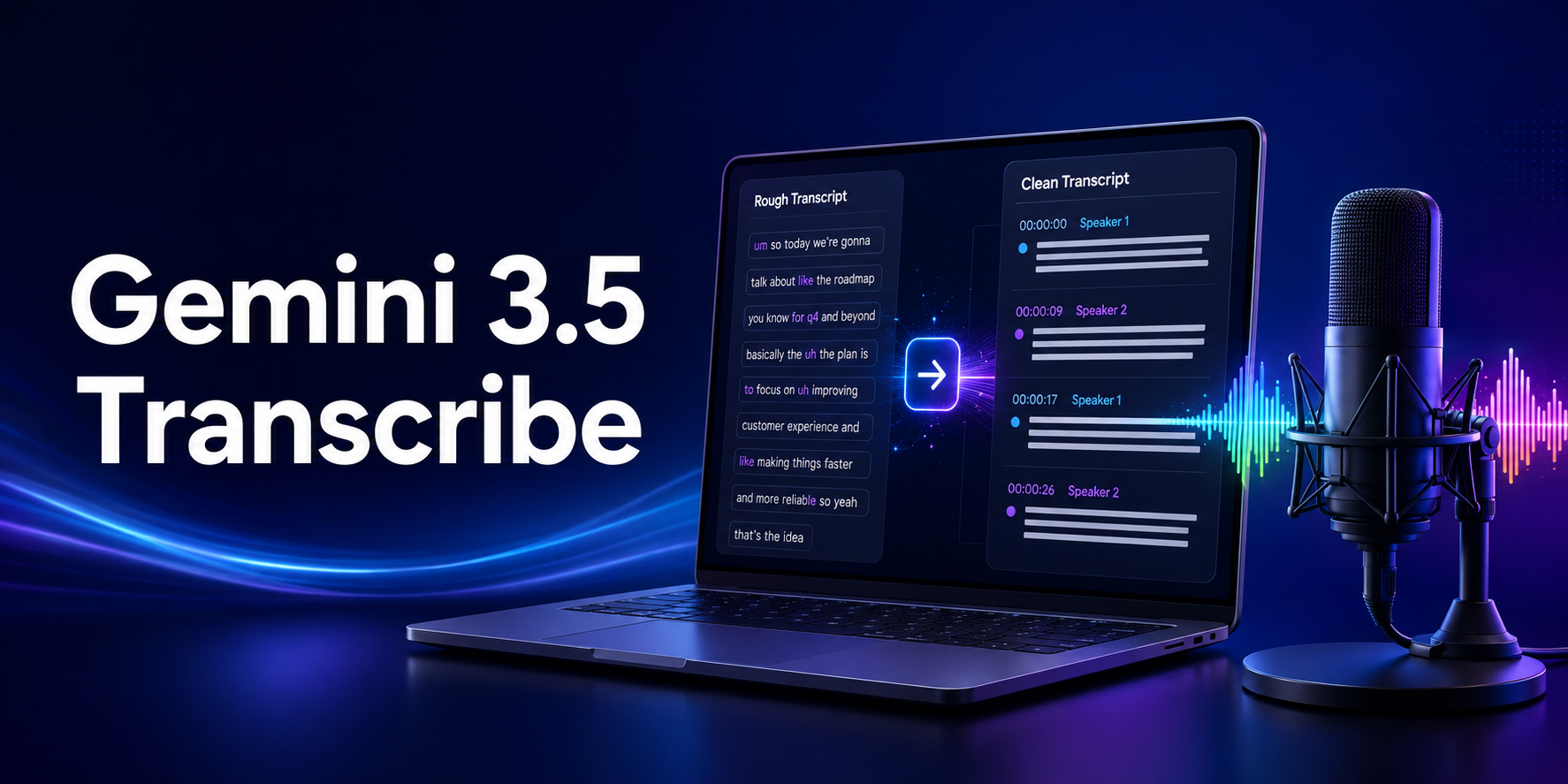
Traditional voice typing captures that mess almost exactly. Gemini 3.5 Transcribe takes a different approach. It can remove filler words, recognize spoken corrections, format the text, detect languages, and separate speakers in recorded audio.
If you’re trying to understand how to use Gemini 3.5 Transcribe, the first thing to know is that there isn’t one universal button for it. Your options depend on whether you’re using a Mac, a supported Pixel phone, Google AI Studio, or the Gemini API.
What Is Gemini 3.5 Transcribe?
Gemini 3.5 Transcribe is Google’s speech-to-text model for converting live or recorded audio into written text.
Google introduced the model on August 26, 2026. The company describes it as a transcription system that understands natural speech instead of simply writing down every sound word for word. Full launch details are available in Google’s official Gemini 3.5 Transcribe announcement.
The model can:
- Remove filler words such as “um” and “uh”
- Understand spoken self-corrections
- Add punctuation and capitalization
- Format dates, currencies, numbers, and lists
- Detect more than 85 languages
- Handle language switching during speech
- Recognize custom terms and specialist vocabulary
- Add word-level timestamps
- Identify different speakers
- Transcribe audio in real time
- Process recorded meetings, calls, interviews, and podcasts
Suppose someone says:
Let’s meet on Tuesday at three. Actually, make that Wednesday at two.
An ordinary transcription tool may keep both dates. Smart transcription can understand the correction and produce a cleaner result: “Let’s meet on Wednesday at 2:00 PM.”
That’s the practical difference. It doesn’t just hear the words; it tries to understand which version the speaker actually intended.
Where Is Gemini 3.5 Transcribe Available?
Gemini 3.5 Transcribe is available through several Google products and developer platforms.
| Platform | Current availability | Best use |
|---|---|---|
| Gemini app on macOS | Available in English, with some features rolling out | Dictation and working across Mac apps |
| Rambler in Gboard | Pixel 11 series in supported regions and languages | Clean voice typing on Android |
| Google AI Studio | Public preview | Testing transcription workflows |
| Gemini API | Public preview | Apps and automated transcription |
| Gemini Enterprise Agent Platform | Public preview | Business transcription systems |
| Chrome | Coming soon | Voice typing in browser fields |
The model itself supports more than 85 languages, but every product doesn’t offer the full language list.
For example, Speak to Window in the Gemini app on Mac is currently limited to English. Rambler supports several languages, but it also requires a compatible Pixel device.
Some Gemini usage limits may depend on your account or subscription. Eligible American college students can read our Google AI Pro free for students 2026 guide to check current eligibility, verification requirements, and renewal conditions.
What You Need Before Starting
The requirements depend on how you want to access the model.
Gemini App on Mac
You’ll need:
- A compatible Mac
- The official Gemini app
- A Google account
- Microphone permission
- English for Speak to Window
Rambler on Android
Google currently lists these requirements:
- A Pixel 11 series phone
- The latest version of Gboard
- Gboard set as the default keyboard
- Microphone permission
- An active internet connection for all features
Rambler offers limited offline processing, but advanced rewriting and voice editing require an internet connection.
Google AI Studio or Gemini API
Developers will generally need:
- A Google account
- Access to Google AI Studio
- A Gemini API key
- An audio file or live audio source
- Basic Python, JavaScript, or API knowledge
- Billing or usage access where required
How to Use Gemini 3.5 Transcribe on Mac
The Gemini macOS app provides the most straightforward desktop option for everyday voice writing.
It offers standard dictation and Speak to Window. Standard dictation lets you speak a prompt inside Gemini. Speak to Window can place cleaned text inside other Mac applications.
Google explains the current controls in its official Gemini app for Mac guide.
Step 1: Open the Gemini App
Install and open Gemini on your Mac. Sign in with your Google account and grant microphone access when requested.
The app may also request permission to work with other applications or view an active window. Read the permission details before approving them.
Step 2: Select the Right Voice Option
Use the microphone inside Gemini when you want to dictate a prompt directly to the assistant.
Use Speak to Window when you want Gemini to write or edit text inside another application, such as:
- Apple Mail
- Notes
- Google Docs
- A messaging application
- A content editor
- A social media text field
Step 3: Place the Cursor
Open the application where you want the text to appear and click the correct text field.
For example, open an email draft and place the cursor inside its message body.
Step 4: Start Speak to Window
Press and hold the fn key while speaking. Release it when you’re finished.
Depending on your settings, you may also be able to open Gemini and select Speak to Window manually.
Speak normally. There’s no need to announce every comma and full stop. Gemini can add punctuation, clean up pauses, and remove some unnecessary speech sounds.
Step 5: Review the Text
Read the finished text before sending, publishing, or saving it.
Pay close attention to:
- Personal names
- Company names
- Dates
- Prices
- Addresses
- Phone numbers
- Technical terms
A polished transcript can still contain an incorrect detail.
Step 6: Change the Use Reasoning Setting
Speak to Window can either treat your words as dictation or try to understand them as instructions.
If Use reasoning is on, a sentence such as “Make this shorter and more professional” may be treated as an editing command.
If it’s off, Gemini focuses more closely on writing and cleaning up what you said.
To change this setting:
- Open Gemini on your Mac.
- Select Gemini from the top menu.
- Open Settings.
- Choose Speak to Window.
- Turn Use reasoning on or off.
Turning reasoning off may be useful when you only want straightforward dictation.
How to Use Rambler on Android
Rambler is a Gemini-powered voice input feature built into Gboard. It converts natural speech into cleaned text wherever Gboard works.
Google’s current Rambler voice input instructions list the Pixel 11 series as a requirement.
Step 1: Update Gboard
Open the Google Play Store and make sure Gboard is updated.
Set Gboard as your default keyboard and allow it to use your phone’s microphone.
Step 2: Enable Rambler
Open an application where you can type, such as Gmail or Google Messages.
Tap a text field to open Gboard, then select the microphone icon. If an introductory Rambler message appears, tap Start.
If the introductory screen doesn’t appear:
- Open the Gboard menu.
- Select Settings.
- Open Voice typing.
- Choose Rambler.
Step 3: Speak Naturally
Tap the microphone and start speaking.
You don’t need to slow down unnaturally or dictate punctuation after every sentence. Rambler is designed to understand ordinary pauses, self-corrections, and casual speech.
Tap Done when you finish.
Step 4: Check the Result
Your cleaned text will appear in the selected field. Rambler can remove filler words, improve punctuation, and organize the sentence structure.
Review everything before sending it. This matters even more when the message includes dates, money, addresses, or names.
Step 5: Edit Using Voice Commands
Rambler can also change text already present in the field.
Try commands such as:
- “Make this shorter.”
- “Make this more professional.”
- “Change Friday to Monday.”
- “Remove the last sentence.”
- “Replace blue with green.”
- “Add a smile emoji.”
There isn’t a rigid list of phrases you must memorize. Direct, conversational instructions usually work best.
Which Languages Does Rambler Support?
The complete Gemini transcription model can detect more than 85 languages. Rambler’s officially tuned language list is smaller.
Its current languages include:
- Arabic
- English
- French
- German
- Hindi and other supported Indian languages
- Italian
- Japanese
- Korean
- Portuguese
- Russian
- Spanish
Rambler can understand some language switching within the same recording. A speaker could begin in English, use a Hindi phrase, and then return to English.
Accuracy will still depend on pronunciation, accent, microphone quality, background noise, and the words being spoken.
How Developers Can Access Gemini 3.5 Transcribe
Developers can test and use the model through the Gemini API in Google AI Studio.
There are two main model options:
gemini-3.5-transcribefor pre-recorded audiogemini-3.5-transcribe-livefor real-time streaming
The recorded-audio model is suitable for:
- Podcasts
- Interviews
- Meetings
- Voice notes
- Customer calls
- Recorded lectures
- Support conversations
The live model is better suited to captions, voice assistants, call systems, and other experiences where text needs to appear while someone is speaking.
How to Transcribe a Recorded Audio File
Google’s Interactions API can accept an uploaded audio file and return a written transcript.
Step 1: Open Google AI Studio
Visit Google AI Studio and sign in. Create a Gemini API key if you don’t already have one.
Keep the API key private. Don’t place it inside public code, screenshots, articles, or shared documents.
Step 2: Install the Google GenAI Package
For Python, install the current package:
pip install -U google-genai
Store your API key as an environment variable instead of writing it directly into the script.
Step 3: Upload the Audio
Upload the audio file and send its location and media type to the transcription model.
from google import genai

client = genai.Client()

audio = client.files.upload(file="meeting.mp3")

result = client.interactions.create(
    model="gemini-3.5-transcribe",
    input=[
        {
            "type": "audio",
            "uri": audio.uri,
            "mime_type": audio.mime_type,
        }
    ],
)

print(result.output_text)
Replace meeting.mp3 with the path to your recording.
Because the model and API are in preview, request formats may change. Review the official Gemini audio transcription documentation before using the workflow in a production application.
Step 4: Check the Transcript
Review the output against the original recording.
Focus on:
- Names
- Dates and times
- Product terminology
- Email addresses
- Order numbers
- Prices
- Overlapping speech
- Sections with background noise
A transcript may be accurate overall while still getting one important number wrong.
Verbatim vs Smart Transcription
Gemini 3.5 Transcribe supports two different transcription approaches.
Verbatim Mode
Verbatim mode preserves the speaker’s original wording, including:
- Filler words
- Repeated phrases
- False starts
- Informal grammar
- Self-corrections
- Speech pauses
This mode is useful for research interviews, legal reviews, journalism, usability testing, and situations where the exact spoken words matter.
Smart Transcription Mode
Smart mode focuses on producing readable text. It can:
- Remove filler words
- Clean up repeated phrases
- Resolve spoken corrections
- Add punctuation
- Format numbers and dates
- Organize speech into paragraphs or lists
- Improve basic grammatical flow
Smart transcription is better suited to meeting notes, dictated emails, content drafts, call summaries, and internal documents.
The distinction matters. A clean transcript isn’t always an exact transcript. Choose the mode based on how the text will be used.
How Speaker Identification Works
For pre-recorded audio, Gemini 3.5 Transcribe can label different speakers.
Google officially supports speaker attribution for up to three people. Identifying more than three speakers is currently experimental.
This can be useful for:
- Interviews
- Small meetings
- Podcasts
- Customer support calls
- Research discussions
- Classroom conversations
Speaker identification may become less accurate when people interrupt each other, sit far from the microphone, or have similar voices.
For an important recording, reduce overlapping speech and place the microphone where every participant can be heard clearly.
Using Custom Vocabulary
Company names, medical terms, technical abbreviations, and unusual spellings can confuse ordinary transcription systems.
Gemini 3.5 Transcribe lets developers provide custom vocabulary hints. These help the model recognize specialist terms used in a particular recording or industry.
A vocabulary list might include:
- Employee names
- Brand names
- Product models
- Medical terminology
- Legal terms
- Scientific words
- Industry abbreviations
- Cities
- Project-specific language
Keep the list relevant. A huge collection of unrelated words may make it less useful.
Tips for More Accurate Transcriptions
Use a Clear Microphone
A phone microphone may be enough for a short note. Use a dedicated microphone for interviews, meetings, and podcasts when possible.
Reduce Background Noise
Fans, traffic, music, and nearby conversations can affect speech recognition. Move closer to the microphone and reduce unnecessary sound.
Don’t Talk Over Other Speakers
Speaker attribution works better when only one person speaks at a time.
Provide Technical Terms
Use custom vocabulary when the recording contains industry-specific language, names, or product codes.
Select the Correct Mode
Choose verbatim mode when exact speech matters. Use Smart transcription when readability is more important.
Check Numbers Manually
Verify phone numbers, dates, prices, serial numbers, and addresses against the original recording.
Keep the Original Audio
Don’t delete the recording immediately. You may need it to check unclear sections or correct a disputed quote.
How Students Can Use Transcribed Material
Students could use the model to convert a recorded lecture, study discussion, or spoken revision session into organized notes.
After checking the transcript, it could be added to a course notebook alongside lecture slides and readings. Our Gemini Student Hub guide explains how to organize course sources, create flashcards, build practice quizzes, and identify weaker areas.
Permission still matters. Never record a lecture, meeting, interview, or private conversation unless the participants and relevant rules allow it.
Gemini 3.5 Transcribe vs Traditional Voice Typing
| Feature | Traditional voice typing | Gemini 3.5 Transcribe |
|---|---|---|
| Basic speech-to-text | Yes | Yes |
| Filler-word removal | Usually limited | Available in Smart mode |
| Spoken corrections | Often keeps both versions | Can retain the intended version |
| Automatic formatting | Basic punctuation | Paragraphs, lists, dates, and numbers |
| Language detection | Often manually selected | More than 85 languages at model level |
| Language switching | Limited | Supported |
| Custom vocabulary | Sometimes limited | Supported |
| Speaker identification | Usually unavailable | Up to three officially supported |
| Word-level timestamps | Usually unavailable | Supported |
| Real-time streaming | Sometimes | Available through the Live API |
Traditional dictation is still fine for a search query or short message. Gemini becomes more useful when the recording is long, multilingual, technical, or messy.
Privacy and Accuracy Considerations
Voice recordings can contain sensitive details without the speaker realizing it. A meeting might include customer information, financial figures, personal addresses, or private business plans.
Google’s Gboard documentation says Rambler’s audio, text, and corrections are temporarily processed and deleted after the text is delivered. That statement applies specifically to Rambler.
Businesses and developers using Gemini APIs should separately review Google’s current data-use terms, storage settings, retention rules, and regional requirements.
The model can also make mistakes. It may:
- Mishear a name
- Select the wrong technical term
- Confuse similar speakers
- Remove a word that appeared unnecessary
- Format a number incorrectly
- Struggle with overlapping speech
- Misinterpret audio recorded in heavy noise
Don’t use an unreviewed transcript as a final legal record, medical document, financial instruction, or published quotation.
Current Limitations
Gemini 3.5 Transcribe has broad model capabilities, but consumer access remains limited.
- Rambler currently requires a Pixel 11 series device.
- Rambler isn’t available in every language or country.
- Speak to Window on Mac currently supports English.
- Some macOS features are still rolling out.
- Chrome support is coming soon.
- Support for more than three speakers is experimental.
- Smart cleanup isn’t appropriate when exact speech must be preserved.
- API access requires technical setup.
These conditions may change as Google expands the feature.
Troubleshooting
Rambler Doesn’t Appear
Confirm that you have a Pixel 11 series phone, the latest Gboard version, microphone permission, and access in a supported region.
Open Gboard Settings, choose Voice typing, and check for Rambler.
Speak to Window Isn’t Available
Update the Gemini macOS app and confirm that you’re signed in. The feature is rolling out and currently supports English.
Filler Words Remain in the Transcript
Check whether you’re using verbatim or standard transcription. Select Smart transcription when you want filler-word removal and cleaner formatting.
Technical Words Are Incorrect
Provide custom vocabulary through the API. Review unusual names and terms manually.
Speakers Are Labeled Incorrectly
Use clearer audio, reduce interruptions, and keep the number of speakers within the officially supported range.
The API Request Fails
Check the API key, model name, audio file, usage limits, and current developer documentation. Preview APIs can change.
Frequently Asked Questions
Is Gemini 3.5 Transcribe available to everyone?
Not through one universal interface. Consumers can access related features through Gemini on macOS and Rambler on supported Pixel devices. Developers can use the model through Google AI Studio and the Gemini API.
Is Gemini 3.5 Transcribe free?
Some consumer features may be included with supported devices or accounts. API usage can have separate limits and pricing. Check Google’s current pricing information before processing large audio collections.
How many languages does it support?
The model detects and transcribes more than 85 languages. Individual products such as Rambler and Speak to Window support fewer languages.
Can it remove “um” and “uh”?
Yes. Smart transcription can remove filler words, repeated phrases, stuttering, and some false starts.
Can it transcribe several speakers?
Yes. Google officially supports speaker attribution for up to three speakers in recorded audio. Support beyond three speakers remains experimental.
Does it provide timestamps?
It can provide word-level timestamps through supported developer workflows.
Can it transcribe live audio?
Yes. Developers can use gemini-3.5-transcribe-live through the Gemini Live API for real-time transcription.
Can I use it in Chrome?
Google says voice typing powered by the model is coming to Chrome, but it isn’t generally available there yet.
What’s the difference between Smart and verbatim transcription?
Verbatim mode preserves the original speech, including filler words and corrections. Smart mode cleans and formats the transcript for easier reading.
Can it transcribe podcasts and interviews?
Yes. The recorded-audio model can handle podcasts, calls, interviews, and meetings. Review speaker labels, quotations, and important details before publishing.
Does Rambler work on every Android phone?
No. Google’s current support documentation lists the Pixel 11 series as a requirement.
Turn Rough Speech Into Useful Text
Once you understand how to use Gemini 3.5 Transcribe, the most important decision is choosing the right transcription mode.
Use Smart transcription when you need readable meeting notes, polished messages, or a clean first draft. Choose verbatim mode when every spoken word and hesitation matters.
The model can remove a surprising amount of cleanup work, but it can’t replace a careful final review. Keep the original recording, verify important details, and treat the transcript as a strong draft rather than unquestionable proof of what was said.
