

A syllabus, six PDFs, three folders of half-finished notes… and somehow the exam is next week. That’s usually the moment when “getting organized” starts to feel like another assignment.
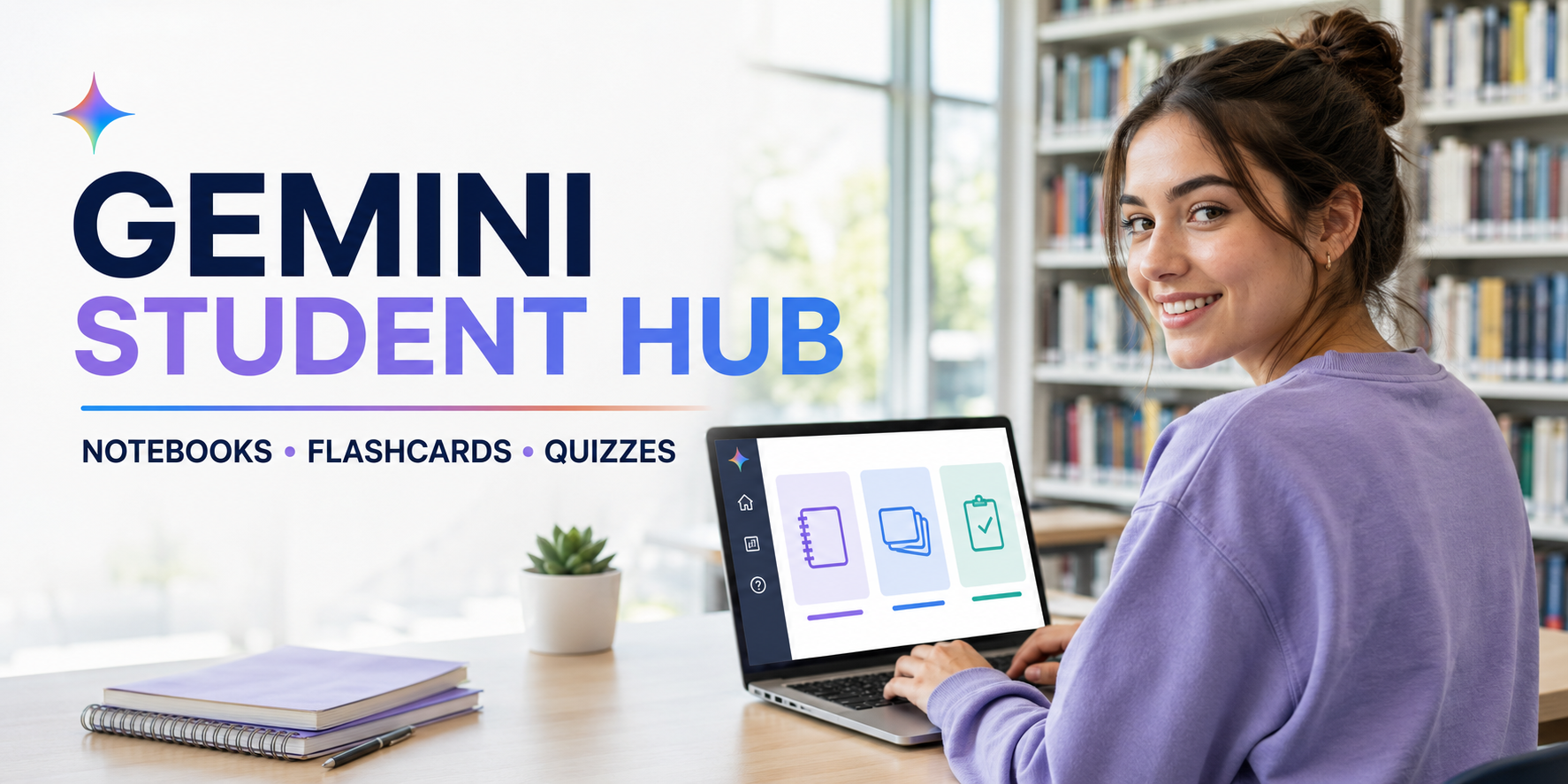
Google’s new Student Hub tries to put the useful study features of Gemini in one place. You can create course notebooks, upload class materials, make flashcards, take practice quizzes, and track what you’ve actually learned. If you’re wondering how to use Gemini Student Hub without turning it into another messy folder, the trick is to start with one course and one clear goal.
What Is Gemini Student Hub?
Gemini Student Hub is a dedicated area inside the Gemini app built around schoolwork and exam preparation. Instead of opening separate chats for every task, students can manage study notebooks, quizzes, flashcards, and other learning tools from a central space.
Google announced the updated hub in August 2026 alongside new study features and student subscription offers. According to Google’s official announcement, the hub is available on mobile and the web for signed-in personal accounts. Availability for some school-managed accounts and younger users may follow a different rollout schedule.
The hub currently brings together tools for:
- Creating a study notebook for each course
- Uploading lecture notes and class materials
- Finding knowledge gaps through diagnostic quizzes
- Building short, personalized lessons
- Generating flashcards and practice questions
- Tracking progress across different topics
- Exploring concepts through interactive visuals
- Starting research tasks with Gemini Live
It isn’t a replacement for your professor, textbook, or common sense. But it can make a pile of scattered material feel much easier to handle.
How to Get Started With Gemini Student Hub
The layout may look slightly different depending on your account, device, and rollout status. The general setup is simple, though.
Step 1: Open the Student Hub
Visit the official Gemini Student Hub and sign in with your Google Account.
A personal Google Account will usually provide the smoothest access during the initial rollout. If you’re using a school-issued account and don’t see the same features, your institution’s administrator or Google’s rollout schedule may be the reason.
Look for the Student Hub area inside Gemini. From there, you can view learning tools, open an existing notebook, or begin a new one.
Step 2: Choose One Course
Don’t upload everything from your entire semester into a single notebook. It sounds convenient, but mixing chemistry notes with economics slides and an English reading list will create unnecessary confusion.
Start with one class.
A clear notebook name such as “Biology 101 — Fall 2026” works better than something vague like “School Stuff.” If the course covers several large units, you can create separate notebooks for midterms, finals, or individual projects.
Step 3: Create a Study Notebook
Select the option to create a new study notebook. Google may display this as “New notebook” or “+ New notebook,” depending on the version you’re using.
Give the notebook a specific learning goal. For example:
- Prepare for the Biology 101 midterm
- Review chapters 4 through 8
- Learn the main concepts from this week’s lectures
- Practice for the SAT math section
- Organize sources for a history research paper
A focused goal gives Gemini a better idea of what kind of lessons and questions will be useful.
Add the Right Course Materials
A study notebook becomes more useful when its sources match the work you’re actually doing.
You can begin by adding:
- Your course syllabus
- Lecture notes
- Presentation slides
- Assigned readings
- Study guides
- Relevant PDFs
- Your own summaries
- Practice questions supplied by your instructor
Google says its Gemini study notebooks can use uploaded materials to build personalized lessons and quizzes. The system begins with your sources rather than relying only on a broad request. You can read more about this process in Google’s official study notebooks guide.
Clean Up Your Files First
Take five minutes to check the files before uploading them.
Remove blank pages, unrelated readings, duplicate slides, and badly scanned documents when possible. A clear file name such as “Week 4 — Cell Division Lecture” is far more useful than “scan_0047_final_new.pdf.”
And don’t upload private student records, financial details, passwords, or documents you don’t have permission to share. Class notes are one thing. Sensitive personal information is another.
Take the Diagnostic Quiz
Once your sources are available, Gemini can create a diagnostic quiz to check what you already understand and where you’re struggling.
This part is worth doing honestly. Looking up every answer might produce a lovely score, but it defeats the purpose.
Suppose you upload five weeks of economics notes. You remember supply and demand well but keep mixing up monetary and fiscal policy. A diagnostic quiz can help identify that weaker area so your next lessons spend less time repeating what you know.
Google says the results can be used to create a learning plan based on your strengths and knowledge gaps.
Work Through Personalized Lessons
After the initial assessment, the study notebook can break your material into shorter lessons. These lessons are built around the topics that need more attention.
Short sessions usually work better than trying to finish everything in one exhausting evening. You might complete one lesson, answer a few questions, then come back later for another round.
You can also stop during a lesson and ask for clarification. Try prompts such as:
- Explain this in simpler language
- Give me a real-world example
- Show why my answer was wrong
- Compare these two concepts
- Ask me another question on the same topic
- Explain this without giving me the final answer
That last prompt is especially helpful when you want guidance without having the work completed for you.
Create Flashcards That Are Actually Useful
AI-generated flashcards can become repetitive when the instruction is too broad. “Make flashcards from my notes” may return a huge stack of obvious definitions.
Give Gemini a narrower request:
- Create 15 flashcards from chapters 3 and 4
- Focus only on dates, names, and causes
- Make difficult flashcards for the topics I missed
- Put a short example on the answer side
- Avoid repeating questions from my previous set
Review every card before using it. If an answer seems odd, compare it with the original lecture notes or assigned reading.
Flashcards are good for formulas, vocabulary, dates, and short concepts. They’re less helpful for ideas that need a full explanation or a worked example.
Build Better Practice Quizzes
Practice quizzes are useful because they force you to recall information instead of simply rereading it.
Ask for a mix of question styles:
- Multiple-choice questions
- Short-answer questions
- True-or-false statements
- Scenario-based questions
- Questions requiring a short explanation
You can also tell Gemini not to reveal the answers until the end. That makes the quiz feel more like a real test.
Here’s a practical prompt:
“Create a 20-question practice quiz using only the uploaded lecture notes. Mix multiple-choice and short-answer questions. Don’t show the answers until I submit all responses.”
After finishing, ask Gemini to explain your mistakes and create a shorter quiz focused only on those areas.
Use the Progress Dashboard
Gemini study notebooks include a progress dashboard that changes as you complete lessons and quizzes.
Google says learning goals may be divided into smaller objectives and grouped into categories such as:
- Strengths
- Focus areas
- Not started
The dashboard can help you decide what to study next. Still, treat it as a guide rather than a perfect measurement of your ability. A green progress bar doesn’t guarantee that you’ll remember the topic under exam pressure.
A useful habit is to revisit a completed topic after two or three days. If you can still explain it without checking your notes, that’s a much stronger sign that the material has stuck.
Add Exam Dates to Google Calendar
Google has said Gemini will be able to identify important dates in an uploaded syllabus and, with permission, add items such as exams and assignment deadlines to Google Calendar.
If the option is available on your account, check every date before saving it. Syllabi can change, and a wrongly interpreted date could create a nasty surprise.
I’d keep the calendar simple:
- Exam date
- Assignment deadline
- First review session
- Final review session
Too many reminders quickly become background noise. Four useful alerts beat twenty that you’ll swipe away.
Try Interactive Visualizations
Some topics make more sense when you can move, rotate, or explore a visual example.
Gemini can create interactive explanations for suitable subjects, including 3D models, tables, grids, and simulations. A biology student might explore a DNA structure, while a physics student could examine how a pendulum transfers energy.
Try prompts like:
- Show how DNA is structured in 3D
- Create an interactive model of the solar system
- Show how energy changes as a pendulum moves
- Build a table comparing these economic theories
Generated visuals can make a difficult idea easier to grasp, but they should still be checked against trusted course materials.
Use Gemini Live for Research
Gemini Live offers a more conversational way to work through a topic. Google has also introduced Deep Research capabilities that can handle a longer research task in the background and notify you when the report is ready.
You could use it to collect an overview of a topic before starting a paper, then discuss the results through voice.
But don’t copy the report into an assignment and call it finished. Open the original sources, check important claims, and follow your college’s academic integrity policy. Research assistance is useful. Unverified citations are not.
Is Gemini Student Hub Free?
Many Student Hub features are rolling out to signed-in Gemini users, although limits and availability can vary by account.
Paid Google AI plans may offer higher limits and allow students to work with more notebooks or source material. Eligible US college students may also qualify for a 12-month Google AI Pro trial at no cost.
If you want to check the eligibility rules, deadline, and renewal terms, read our guide to Google AI Pro free for students in 2026.
You don’t need to upgrade immediately just because an offer exists. Test the available tools first, see whether they fit your study habits, then decide whether the expanded limits would matter.
Smart Ways to Use the Hub
The technology is impressive, but a messy study routine will still be messy with better software.
Keep One Notebook Per Course
Separate notebooks keep the sources and questions focused. This also makes it easier to return to an older class without scrolling through unrelated material.
Ask Specific Questions
“Help me study biology” is too broad.
“Quiz me on cell division using the Week 4 lecture slides” gives the tool a clear task and a clear source.
Check Important Answers
Open your textbook, lecture slides, or official research source when an answer affects an assignment or exam. Gemini can make mistakes, misunderstand a document, or oversimplify a complicated point.
Use It to Learn, Not Just Finish
If you ask for every final answer, you may complete the homework faster but understand less.
Ask for hints, explanations, examples, and practice questions. That takes slightly longer. It’s also far more useful when the exam arrives and the chatbot isn’t sitting beside you.
What to Do if Student Hub Doesn’t Appear
Don’t panic if your screen looks different from someone else’s screenshot. Google often releases new features gradually.
Try these steps:
- Confirm that you’re signed in to the correct Google Account.
- Open the Student Hub through its official web address.
- Update the Gemini mobile app.
- Check whether the feature works in a desktop browser.
- Start a new Gemini session and look for the learning tools again.
- Check whether your school account has administrative restrictions.
- Wait and try again later if the rollout hasn’t reached your account.
The availability of individual features may depend on language, age, location, account type, and usage limits.
Frequently Asked Questions
What can Gemini Student Hub do?
It brings together study notebooks, flashcards, quizzes, progress tracking, interactive learning tools, and other Gemini features designed for students.
Can I upload my lecture notes?
Yes. Study notebooks can work with uploaded class materials such as lecture notes, readings, slides, and a syllabus. Only upload files you have the right to use.
Can Gemini create practice exams?
Gemini can generate practice questions and quizzes based on the material you provide. Review the questions carefully because generated content can contain errors.
Does Student Hub work on mobile?
Google says the Student Hub is available through mobile and web for signed-in consumer accounts, though individual features may roll out at different times.
Can it prepare students for the SAT or ACT?
Google has described support for standardized exam preparation through study notebooks. Availability may vary, so check which exam options appear in your account.
Are the answers based only on uploaded notes?
Study notebook activities can be grounded in uploaded course materials, but you should still state clearly when you want Gemini to use only those sources.
Can Gemini add exam dates to my calendar?
Google has announced calendar support that can identify dates from a syllabus and add them to Google Calendar with the user’s permission. Check every date before saving it.
Is it safe to use for college assignments?
It can help with planning, explanations, quizzes, and research preparation. Students should verify the output and follow their institution’s rules for AI-assisted work.
A Study Tool Still Needs a Study Habit
Once you know how to use Gemini Student Hub, the setup isn’t complicated: create one course notebook, add clean source material, take the diagnostic quiz, and work through the areas that need attention.
The real value isn’t having another place that can generate text. It’s getting a clearer view of what you understand and what still needs work.
Start small. One class, one notebook, one honest practice quiz. That’s enough to see whether the hub genuinely helps before you build your entire semester around it.
