

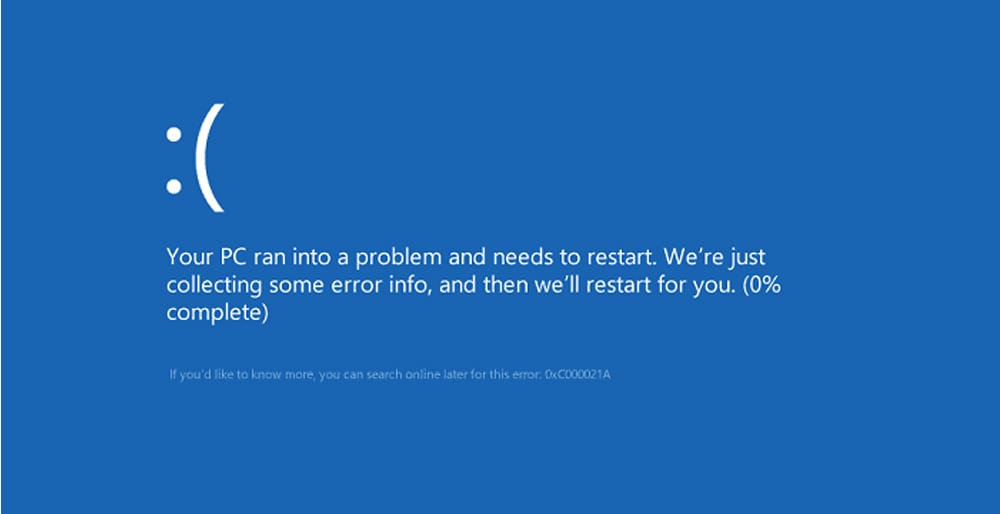
So there I was, three tabs deep into a work deadline, when my screen just… died. Not the usual freeze where you wait and pray. It went straight to blue, some sad little face staring back at me, and a string of letters that meant absolutely nothing at first glance. Sound familiar? If you’ve been getting what people are now calling an AI Blue Screen Error, you’re honestly not alone, and no, your laptop isn’t cursed.
Let’s talk about what’s actually going on here, because it’s a bit different from the blue screens we used to blame on outdated graphics drivers back in 2015.
What People Mean By “AI Blue Screen Error”
Here’s the thing — this isn’t some official Microsoft term you’ll find in a manual. It’s become a catch-all phrase for two very different situations that both end with your screen turning blue and your heart sinking a little.
The first is pretty literal: crashes caused by AI-related software running on your machine. Think NPU drivers, AI acceleration tools bundled with new laptops, or utility software like motherboard AI suites that manage fan speeds and overclocking. I’ve read through forum threads where people spent an entire weekend troubleshooting, only to find out some AI-powered utility from their motherboard maker was quietly corrupting a system file every time it started up. Remove the software, blue screens stop. Just like that.
The second meaning is almost the opposite — people using AI tools to actually diagnose their blue screens. Crash dump analyzers powered by AI now scan the .dmp file Windows generates and try to translate the hexadecimal gibberish into something a normal person can understand. That part, honestly, I think is a genuinely useful development.
Why AI Software Sometimes Triggers the Crash Instead of Fixing It
It’s a little ironic. Tools meant to make your PC smarter end up being the reason it stops working altogether. And it’s not some rare fluke either — there are entire forum threads dedicated to specific AI suite software conflicting with Windows kernel files, throwing errors like PAGE_FAULT_IN_NONPAGED_AREA or corrupting system drivers such as ntoskrnl.
I get why it happens, too. These programs often run at a deep system level, hooking into hardware controls, sensors, and drivers all at once. One small conflict, one bad update, and the whole thing cascades into a stop error. It’s not always the AI feature itself that’s the problem — sometimes it’s just poorly tested software that happens to have “AI” slapped on the box for marketing reasons.
Find More Expert Content: Sugarlab ai
Common Causes Behind These Crashes
Let’s break this down a bit, because “blue screen” covers a lot of ground and not every cause is the same.
Driver Conflicts
This is still the number one culprit, AI-related or not. Outdated or mismatched drivers — especially ones tied to graphics cards, NPUs, or AI acceleration chips — cause a huge chunk of these crashes. Manufacturers push new features faster than they can fully test them sometimes, and you end up being the unpaid beta tester.
Third-Party AI Utilities
Motherboard AI suites, laptop AI assistants, background AI monitoring tools — a lot of new machines ship with these pre-installed, and honestly, most people never asked for them. When they misbehave, they misbehave hard, often producing repeated crashes right after login.
Corrupted System Files
Sometimes it’s not the AI software directly but the damage it left behind. A botched install or an interrupted update can corrupt core Windows files, and once that happens, blue screens start showing up even when the original software is long gone.
Overheating and Hardware Stress
AI workloads, especially anything doing local processing on an NPU or GPU, can push hardware harder than typical use. Poor cooling plus sustained AI tasks equals thermal throttling, and in worse cases, a full system crash.
How to Actually Fix an AI Blue Screen Error
Alright, enough background — let’s get practical. Here’s what’s actually worked, based on what I’ve tried myself and what shows up again and again in troubleshooting threads.
Start With the Stop Code
Every blue screen shows a code, even if it flashes by fast. Write it down, or better yet, take a photo with your phone before it restarts. Codes like SYSTEM_SERVICE_EXCEPTION or DPC_WATCHDOG_VIOLATION point toward specific causes, and searching that exact code saves you hours of guessing.
Check What You Installed Recently
Did this start right after installing some AI utility, a driver update, or new software? Nine times out of ten, that timing isn’t a coincidence. Uninstall it, restart, and see if the crashes stop. If they do, you’ve got your answer without needing to touch a single system setting.
Update or Roll Back Drivers
Sometimes the fix is updating to the latest driver version. Sometimes, weirdly, it’s the opposite — rolling back to an older, more stable version because the newest release is buggy. Both are worth trying.
Run a Crash Dump Analysis
This is where the “helpful AI” side of this whole topic comes in handy. AI-based crash dump analyzers can read your .dmp files and point toward the likely faulty driver or process. It won’t always nail it perfectly, but it beats squinting at raw hex codes trying to decode them yourself.
Check Your Temperatures
If crashes happen mostly during heavy tasks, pull up a temperature monitoring tool and watch what happens under load. If your CPU or GPU is hitting dangerously high numbers, that’s your real problem, and no software fix will solve overheating hardware.
Is This Going to Get Worse as AI Features Increase?
Honestly? Probably, at least in the short term. Manufacturers are racing to cram AI features into everything — laptops, motherboards, even mice at this point — and racing usually means less testing time. I don’t think this is a permanent state of things though. A few years back, graphics driver crashes were constant, and now they’re comparatively rare because companies got better at testing before shipping. AI software will likely follow the same curve, just a bit behind.
Wrapping Up
Getting hit with an AI Blue Screen Error is frustrating, no doubt about it, especially when you’re mid-task and lose unsaved work. But once you understand it’s usually tied to a specific driver conflict or a poorly optimized AI utility, it stops feeling like some unsolvable mystery. Check what changed recently, look at the stop code, don’t be afraid to uninstall software you didn’t really want in the first place. Most of the time, that’s all it takes.
FAQs
What exactly causes an AI Blue Screen Error?
Most cases trace back to driver conflicts involving AI-related hardware, or third-party AI utility software that wasn’t tested thoroughly enough before release. Corrupted system files and overheating hardware can also play a role.
Can I use AI tools to actually fix a blue screen?
Yes, and it’s becoming pretty common. AI-powered crash dump analyzers read the .dmp file your system creates during a crash and translate the technical details into something easier to act on.
Should I remove AI utility software from my new laptop or motherboard?
If you’re not actively using its features, it doesn’t hurt to remove it, especially if you’re seeing repeated crashes after login. A lot of these tools run in the background whether you need them or not.
Is this the same as the classic Blue Screen of Death?
Pretty much, yes. It’s the same underlying Windows crash mechanism, just triggered more often now by AI-related drivers and software rather than the usual suspects from years past.
How do I know if it’s a hardware problem or a software one?
Check your stop code and your temperatures. Hardware-related crashes often show up under heavy load and come with high temperature readings, while software conflicts tend to happen right after installing or updating something specific.
Follow Us for More Informational Blogs
