

I once cleaned up a short meeting transcript that contained more “ums” than useful sentences. The speaker knew exactly what he wanted to say, but the raw transcript made him sound uncertain because every pause, repeated word, and abandoned sentence had been captured.
That’s normal speech. We hesitate, correct ourselves, and occasionally begin a sentence without knowing where it’s going.
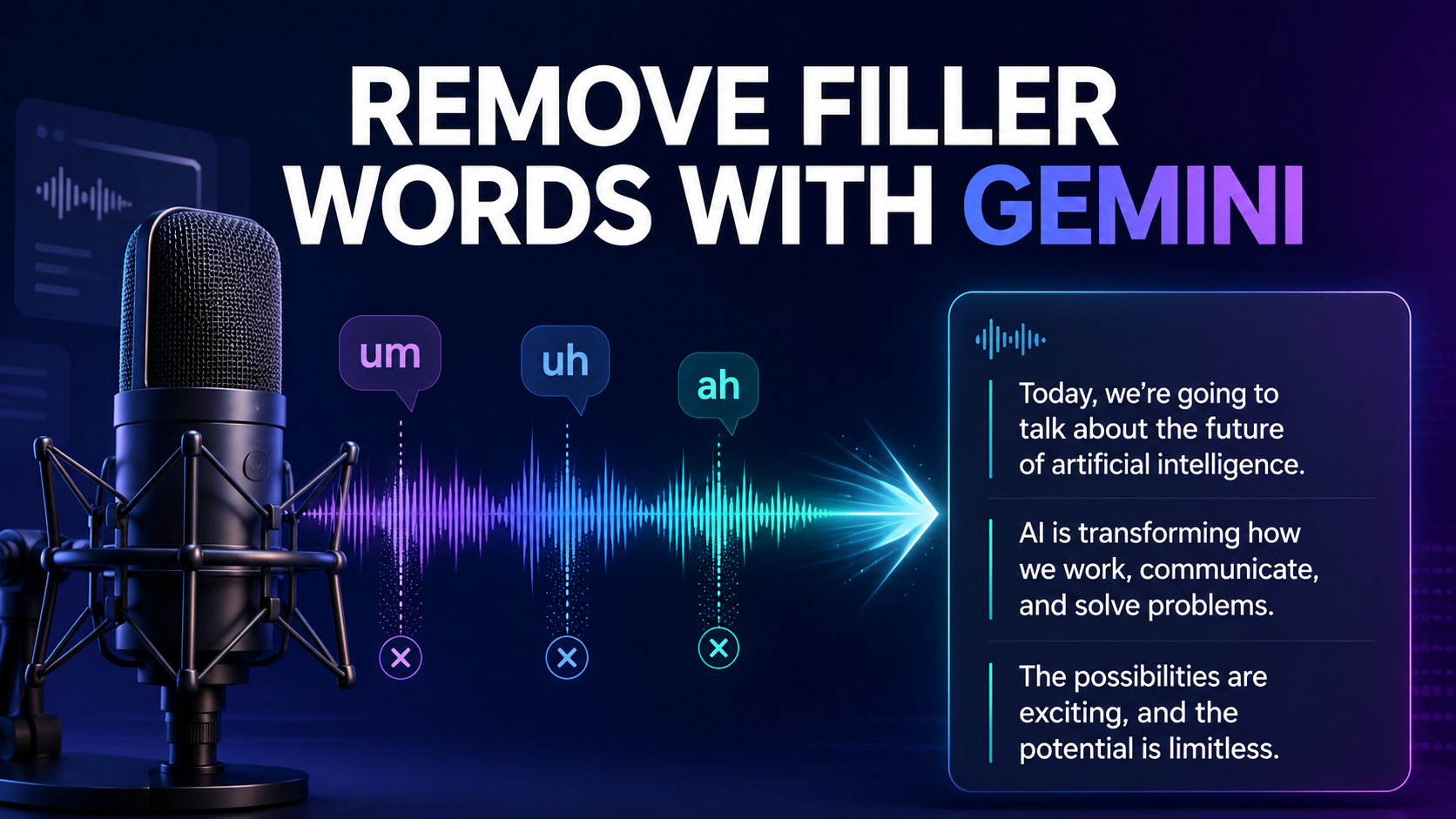
But those little pauses become distracting when spoken audio is turned into an article, meeting summary, podcast transcript, or customer note. If you’re trying to learn how to remove filler words with Gemini, the useful feature to know about is Smart transcription. It can clean up disfluencies while keeping the intended meaning of the recording.
What Counts as a Filler Word?
Filler words are sounds or phrases people use while thinking about what to say next. Common examples include:
- Um
- Uh
- Ah
- Er
- Like
- You know
- Basically
- I mean
- Sort of
- Kind of
Not every use of these words should be removed. “Like” may be a filler in one sentence and an important verb in another. Context matters.
Spoken audio also contains other forms of clutter. A person may repeat a word, restart a sentence, or correct a detail halfway through speaking.
For example:
“Um, I think we should send the report on Thursday—actually, no, Friday morning.”
A cleaned version would read:
“I think we should send the report on Friday morning.”
The second version is easier to read and preserves the speaker’s final decision.
How Gemini Cleans Up Spoken Audio
Gemini 3.5 Transcribe offers two main transcription styles: Verbatim and Smart.
Verbatim mode tries to preserve exactly what was said, including pauses, filler words, repetitions, and false starts. Smart mode creates a cleaner transcript by removing unnecessary speech patterns and applying more natural formatting.
Google’s official Gemini transcription documentation says Smart transcription can handle filler words, repeated phrases, false starts, self-corrections, punctuation, and grammatical cleanup.
Here’s the practical difference:
| Transcription mode | What it produces | Best suited for |
|---|---|---|
| Verbatim | A close record of the original speech | Interviews, legal records, research, quotations |
| Smart | A polished and easier-to-read transcript | Meetings, articles, notes, podcasts, summaries |
Verbatim is the default mode in the Gemini API. You must select Smart mode when you want Gemini to clean the transcript automatically.
How to Remove Filler Words With Gemini Step by Step
The Smart transcription feature is available through the gemini-3.5-transcribe model for prerecorded audio. You can test Gemini models through Google AI Studio and use the Gemini API when you want to build the feature into a larger workflow.
If you haven’t handled an audio transcription before, our step-by-step Gemini 3.5 Transcribe guide covers the broader setup process.
Step 1: Prepare the Audio File
Start with the cleanest recording available. Gemini supports common audio formats such as MP3, WAV, FLAC, AAC, M4A, OGG, WebM, AIFF, and Opus.
A noisy recording can still be transcribed, but cleanup becomes harder when voices are quiet or several people speak at once. If possible, use the original recording instead of an audio file that has been compressed and forwarded several times.
Clear audio doesn’t need to sound like a studio production. It simply needs understandable speech.
Step 2: Upload the Recording
Upload the file through your Gemini API workflow. For longer recordings, using the Files API is usually more convenient than placing the entire audio file directly inside a request.
Give the file a simple, recognizable name. Something like weekly-team-meeting.mp3 is easier to manage than a random string of numbers.
And keep a copy of the original. A cleaned transcript shouldn’t replace your source recording.
Step 3: Select the Transcription Model
Use the following model for prerecorded audio:
gemini-3.5-transcribe
Google also offers gemini-3.5-transcribe-live for real-time streaming situations, but a saved recording is easier to review when accuracy matters.
Step 4: Turn On Smart Mode
Set the transcription mode to smart in the generation configuration:
from google import genai

client = genai.Client()

audio_file = client.files.upload(
    file="meeting.mp3"
)

interaction = client.interactions.create(
    model="gemini-3.5-transcribe",
    input=[
        {
            "type": "audio",
            "uri": audio_file.uri,
            "mime_type": audio_file.mime_type,
        }
    ],
    generation_config={
        "transcription_config": {
            "mode": "smart"
        }
    },
)

print(interaction.output_text)
The key part is this setting:
"mode": "smart"
Without it, the API uses Verbatim mode and may preserve every “um,” repetition, and unfinished thought.
Step 5: Review the Cleaned Transcript
Smart transcription saves editing time, but it shouldn’t be treated as a final proofreader.
Check:
- Names and job titles
- Dates and appointment times
- Prices and measurements
- Email addresses
- Product names
- Technical terms
- Negative words such as “not” and “never”
- Any sentence where the meaning seems unclear
A transcript can look beautifully polished and still contain one incorrect number. That tiny mistake may matter more than twenty correctly removed filler words.
What Smart Transcription Actually Changes
Smart mode does more than delete “um” and “uh.” It tries to make spoken language work naturally as written text.
It Removes Repeated Words
People often repeat the beginning of a sentence while deciding how to finish it.
Raw speech:
“We should, we should probably contact the client today.”
Clean transcript:
“We should probably contact the client today.”
It Handles False Starts
A false start occurs when someone begins one thought and then replaces it.
Raw speech:
“The meeting will be on Monday—I mean, Tuesday at ten.”
Clean transcript:
“The meeting will be on Tuesday at ten.”
This is especially useful in voice notes. People often correct themselves without going back to record the message again.
It Improves Punctuation and Formatting
Spoken language doesn’t arrive with commas, paragraphs, or headings. Smart mode can add punctuation and organize the text into a more readable shape.
A long block of speech may become several shorter paragraphs. Lists can also be formatted more clearly when the structure is obvious from the recording.
Still, formatting decisions are partly interpretive. Give important transcripts a quick human review before publishing them.
When You Should Keep the Filler Words
Removing every hesitation isn’t always the right choice.
Imagine you’re transcribing a legal interview. A pause or self-correction could be relevant to how a statement is understood. The same applies to academic research, witness testimony, linguistic analysis, and some forms of journalism.
Verbatim mode is the safer choice when:
- Exact wording matters
- The transcript may be used as evidence
- Speech patterns are part of the research
- You’re preparing direct quotations
- Pauses and hesitations carry meaning
- Another person needs to check the transcript against the recording
Podcast transcripts sit somewhere in the middle. Light cleanup usually makes them easier to read, but aggressive editing can erase the speaker’s personality. Sometimes a well-placed “well” or “you know” makes a conversation feel real.
Clean the distractions, not the person.
An Important Smart Mode Limitation
There’s one tradeoff that can easily catch people out: Smart transcription isn’t compatible with speaker diarization or word-level timestamps.
Speaker diarization identifies who spoke during a conversation. Word timestamps show when individual words occurred in the recording. Both features depend on a close connection between the audio and the written transcript.
Smart mode changes that relationship by removing and rewriting speech clutter.
If you need speaker labels or detailed timestamps, use Verbatim mode first. You can then create a separate cleaned copy for reading or publishing.
A sensible workflow for an interview might look like this:
- Generate a Verbatim transcript with speaker labels.
- Save it as the accurate source version.
- Create a separate clean transcript for readers.
- Compare important quotations with the original audio.
It takes a little longer, but you won’t lose useful evidence from the recording.
Tips for Getting a Better Clean Transcript
Smart mode can handle messy speech, though the quality of the source still makes a difference.
Record Close to the Speaker
A phone placed in the center of a large room will capture echoes, chair movement, and several distant voices. Move the microphone closer when you can.
For online meetings, recording separate microphone tracks often gives better results than transcribing sound played through a laptop speaker.
Add Important Terms to Custom Vocabulary
Company names, medical terms, abbreviations, and unusual product names are easy to mishear. Gemini supports custom vocabulary so you can provide terms that are likely to appear in the recording.
Google allows up to 1,000 custom phrases, although its documentation suggests that a shorter, focused list will often work better.
Don’t fill the list with ordinary words. Save it for terms the transcription model may genuinely struggle to recognize.
Don’t Clean Direct Quotes Blindly
Smart mode may improve grammar or remove a self-correction. That’s helpful for notes, but it can create trouble if the text is presented as an exact quotation.
Listen to the original section before publishing someone’s words inside quotation marks.
Give Languages and Accents a Fair Test
Gemini 3.5 Transcribe supports more than 85 language locales and can recognize code-switching, according to Google’s launch announcement.
Results can still vary with accents, background noise, and recording quality. Test a short sample before sending a two-hour interview through your workflow.
You can check regional coverage in our Gemini 3.5 Transcribe supported languages guide.
Where Filler-Word Removal Is Most Useful
Clean transcription is particularly helpful when spoken content needs to become readable content.
A marketing team might record a brainstorming call and turn it into campaign notes. A podcaster could prepare a readable episode transcript. A student may clean up a lecture recording before making revision notes.
It also works well for:
- Meeting summaries
- Voice memos
- Podcast show notes
- Video captions
- Customer call notes
- Interview drafts
- Training materials
- Blog post outlines
The time savings become noticeable with longer recordings. Manually deleting hundreds of tiny verbal pauses isn’t difficult work—it’s just slow, repetitive, and surprisingly tiring.
Common Mistakes to Avoid
The first mistake is assuming that a polished transcript must be accurate. Readability and factual accuracy aren’t the same thing.
Another common mistake is using Smart mode when speaker identification is required. Since Smart mode can’t be combined with diarization or word-level timestamps, decide which output matters before starting the transcription.
And don’t throw away the original file. If a name, number, or sentence looks suspicious later, the recording is your only reliable reference.
The final mistake is over-cleaning. Spoken language has warmth. A transcript that removes every casual expression can sound stiff and strangely unlike the person who spoke.
Frequently Asked Questions
Can Gemini remove “um” and “uh” automatically?
Yes. Gemini 3.5 Transcribe’s Smart mode is designed to remove common filler sounds such as “um,” “uh,” and “ah.” It can also clean repeated words, false starts, and spoken self-corrections.
Is Smart transcription the default setting?
No. Verbatim is the default transcription mode in the Gemini API. Set the mode to smart when you want a cleaner transcript.
Can I use Smart mode with speaker labels?
No. Smart transcription isn’t compatible with speaker diarization. Use Verbatim mode if you need the transcript to identify different speakers.
Does Smart mode support word-level timestamps?
No. Word-level timestamps aren’t available with Smart mode. The model removes or adjusts parts of the spoken content, so the final text no longer maps precisely to every word in the recording.
Will Gemini remove every use of the word “like”?
It shouldn’t remove the word when it carries real meaning, but automatic cleanup isn’t perfect. Review sentences where deleting a word could change the speaker’s intent.
Can Gemini clean up self-corrections?
Yes. If a speaker gives one detail and immediately corrects it, Smart transcription can keep the corrected version. Always review important dates, figures, and instructions against the recording.
Can I remove filler words from a video?
Gemini 3.5 Transcribe works with audio. You can extract the audio track from a video, save it in a supported format such as MP3 or WAV, and then transcribe that file.
Should I use Smart mode for legal or research interviews?
Usually not as the only copy. Create a Verbatim transcript first when exact speech matters. You can make a separate cleaned version for easier reading.
Clean Speech Without Losing the Meaning
Once you know how to remove filler words with Gemini, the technical part is fairly small: use the transcription model, choose Smart mode, and review the result carefully.
The harder decision is knowing how much cleanup the recording actually needs.
For meeting notes, content drafts, and everyday voice memos, Smart transcription can remove a lot of tedious editing. For testimony, research, direct quotations, or anything that depends on exact speech, keep a Verbatim version close by.
A transcript should be easier to read than the raw conversation. But it should still sound like the person who spoke—and, more importantly, it should still mean what they meant.
