

You’ve read the chapter twice, highlighted half the page, and somehow still can’t remember the answer when the book is closed. It’s a familiar problem. Reading can make a topic feel clear, but that feeling often disappears the moment you’re asked a real question.
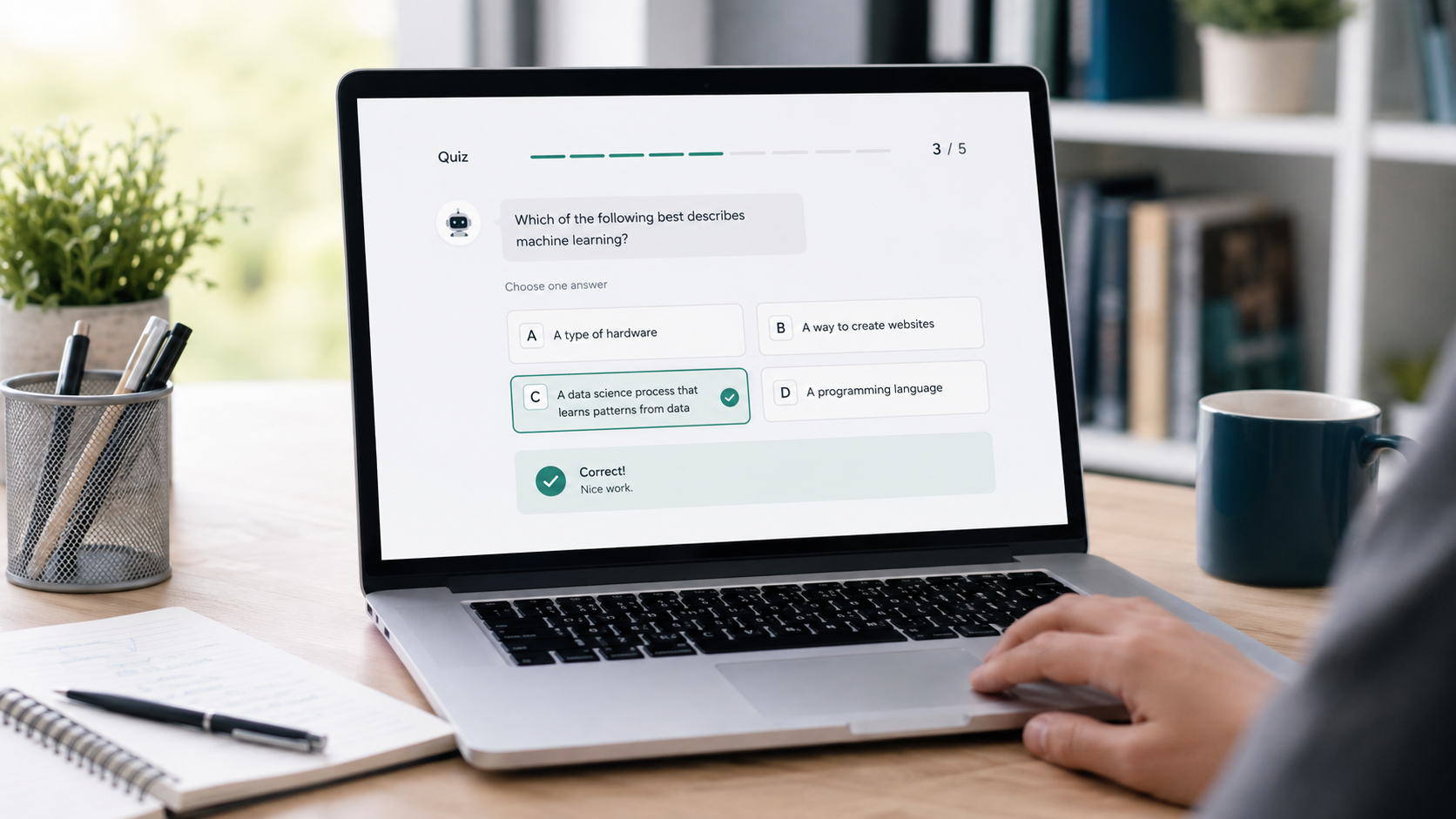
ChatGPT’s interactive quiz feature offers a more active way to study. Instead of giving you a long worksheet and leaving you to check it yourself, ChatGPT can ask questions inside the conversation, respond to your answers, explain mistakes, and move through the quiz at your pace.
If you’re wondering how to use ChatGPT interactive quizzes, the setup is surprisingly simple. You don’t need to install a plugin or search through a complicated settings menu. A clear prompt is usually enough to begin.
If you also use Google’s learning tools, our Gemini Student Hub guide explains how notebooks, flashcards, and quizzes can support a study routine.
What Are ChatGPT Interactive Quizzes?
ChatGPT interactive quizzes are question-and-answer sessions that run directly inside a ChatGPT conversation. You choose the subject, difficulty, question style, and feedback rules. ChatGPT then presents questions based on those instructions.
OpenAI announced the feature on August 14, 2026. According to the company’s official ChatGPT release notes, interactive quizzes are available to consumer ChatGPT plans and Edu plans on the web and mobile devices.
A quiz can be used for much more than school revision. It can help with:
- Exam preparation
- Job interview practice
- Professional certifications
- Language learning
- Employee training
- General knowledge
- Book-club discussions
- Reviewing notes from a class or meeting
- Testing your understanding of a new skill
The useful part is the back-and-forth. You answer, get a response, and continue. It feels less like reading a generated worksheet and more like having someone test you in real time.
Who Can Use the ChatGPT Quiz Feature?
OpenAI says interactive quizzes are available across all consumer ChatGPT plans and ChatGPT Edu plans. This means you don’t need to purchase a paid subscription only to try the feature.
The officially supported platforms are:
- ChatGPT on the web
- ChatGPT on mobile devices
- ChatGPT Edu
Availability can still look slightly different depending on your account, app version, or workspace settings. If you’re using a school-managed account, an administrator may control which features are available.
It’s also worth updating the ChatGPT mobile app before testing the feature. An old app version may not display newer interactive elements correctly.
How to Start a ChatGPT Interactive Quiz
There isn’t much setup involved. Still, the quality of the quiz depends heavily on the information you provide at the beginning.
Step 1: Open ChatGPT
Open ChatGPT in your web browser or launch the mobile app. Sign in to your account and start a new conversation.
Using a fresh conversation is a small thing, but it helps. An older chat may contain unrelated instructions that affect the questions or difficulty.
Step 2: Choose a Specific Topic
Decide what you actually want to practise.
“Quiz me on science” is too broad. ChatGPT could jump between biology, chemistry, physics, and astronomy without giving enough attention to any one area.
A more focused request would be:
Quiz me on cell division, including mitosis, meiosis, chromosomes, and the cell cycle.
A narrow topic usually produces a more useful quiz. If you’re preparing for a particular exam, include the exam name or education level as well.
Step 3: Set the Difficulty Level
Tell ChatGPT how challenging the questions should be.
You could use a school grade, course level, certification name, or a simple description such as beginner, intermediate, or advanced.
For example:
Create an intermediate quiz about digital marketing for someone with six months of practical experience.
Without this detail, the questions may feel far too easy or strangely difficult. And yes, that can ruin the session pretty quickly.
Step 4: Choose the Question Format
ChatGPT can create different types of questions depending on how you prefer to study.
Common formats include:
- Multiple-choice questions
- True-or-false questions
- Short-answer questions
- Fill-in-the-blank questions
- Scenario-based questions
- Mixed-format quizzes
Multiple-choice questions are useful for quick revision. Short-answer questions require more effort, but they’re usually better for checking whether you genuinely understand a topic.
For deeper practice, try a mixed format:
Give me 10 questions about basic cybersecurity. Use five multiple-choice questions, three short-answer questions, and two real-world scenarios.
Step 5: Explain How Feedback Should Work
You can ask ChatGPT to correct each response immediately or wait until the end of the quiz.
Immediate feedback is helpful when you’re still learning. It stops a misunderstanding from carrying into later questions.
Delayed feedback feels more like a traditional exam. You answer everything first, then receive your score and explanations at the end.
A clear instruction might be:
Ask one question at a time. Don’t reveal the answer until I respond. If I’m wrong, explain the correct answer in two or three simple sentences.
That final sentence matters. Without it, the explanation may be too short to help or much longer than you need.
Step 6: Answer Inside the Conversation
Once the quiz begins, select or type your answer directly in the conversation.
You don’t have to finish everything in one sitting. You can pause, ask for clarification, change the difficulty, or request a different question format midway through the session.
For example:
The questions are too easy. Increase the difficulty and focus more on practical situations.
This flexibility is one of the strongest parts of the ChatGPT quiz feature. A printed test can’t adjust when you’re doing well. A conversational quiz can.
Step 7: Request a Final Score and Review
At the end, ask ChatGPT to show:
- Your total score
- Correct and incorrect answers
- Topics you understood well
- Areas that need more revision
- A short practice plan
- Follow-up questions based on your mistakes
Try this:
Give me my final score, explain the questions I answered incorrectly, and create a five-minute review exercise for my weakest topic.
This turns a simple quiz into something more useful. Instead of only seeing a number, you leave with a clear idea of what to study next.
A Ready-to-Use ChatGPT Quiz Prompt
If you don’t want to build a prompt from scratch, copy this template and replace the details in brackets:
Create an interactive quiz about [topic] for a [beginner/intermediate/advanced] learner. Ask [number] questions using [question format]. Show one question at a time and wait for my response before continuing. Tell me whether each answer is correct, explain mistakes briefly, and keep a running score. At the end, identify my weakest areas and suggest what I should review next.
Here’s a completed example:
Create an interactive quiz about the American Civil War for a high-school student. Ask 12 questions using a mix of multiple-choice and short-answer formats. Show one question at a time and wait for my response. Explain incorrect answers in simple language, keep a running score, and give me three revision suggestions at the end.
The prompt is detailed without being fussy. That balance usually works well.
Useful Quiz Prompts for Different Goals
The same basic feature can serve very different users. You just need to change the instructions.
For School or College Students
Quiz me on photosynthesis at an eighth-grade level. Ask 10 multiple-choice questions one at a time. Give me a hint if I answer incorrectly, but let me try once more before revealing the answer.
This format prevents the quiz from becoming a guessing game. The second attempt encourages the student to think again.
For Exam Preparation
Create a 20-question practice test for the CompTIA Security+ exam. Use realistic scenario-based questions. Don’t show corrections until the test is complete. Give me a percentage score and group my mistakes by topic.
For serious exam preparation, use the official syllabus or study guide alongside the quiz. ChatGPT can help you practise, but it shouldn’t be treated as the official source of exam requirements.
For Language Learning
Test my beginner Spanish vocabulary about food and restaurants. Ask one question at a time, accept minor spelling mistakes, and explain corrections in English.
You can also ask for pronunciation guidance, sentence-building practice, or a role-play quiz based on a realistic situation.
For Job Interviews
Act as an interviewer for an entry-level digital marketing position. Ask me 10 questions covering SEO, paid advertising, analytics, and content strategy. After each answer, give brief feedback and ask one follow-up question when needed.
This isn’t a traditional quiz, but the interactive format works well for interview preparation. It helps you practise explaining ideas instead of simply recognizing the correct answer.
For Learning From Your Own Notes
If your account supports file uploads, attach your notes, presentation, or study guide first. Then use a prompt such as:
Create a 15-question quiz using only the attached document. Don’t add facts from outside sources. Mention the relevant section of the document when explaining an incorrect answer.
This is one of the better ways to reduce irrelevant questions. It also makes the quiz more closely match the material you’re expected to learn.
How to Make ChatGPT Quizzes More Accurate
ChatGPT can produce a polished question that contains a factual error. The wording may sound completely confident, too. That’s why a little checking is still necessary.
Give It Reliable Source Material
Upload class notes, paste an approved study guide, or provide the exact topics from your syllabus. Ask ChatGPT to stay within that material.
For medical, legal, financial, or professional certification topics, compare important explanations with reliable official sources.
Ask for Explanations
A correct answer without an explanation doesn’t tell you much. You may have guessed.
Ask ChatGPT to explain why the answer is correct and why the other choices are wrong. This makes it easier to notice weak or questionable reasoning.
Challenge an Answer That Looks Wrong
If a correction doesn’t make sense, don’t accept it automatically. Ask:
Can you verify that answer and explain the reasoning step by step?
You can also provide a trusted source and ask ChatGPT to compare its response with the source.
Keep Questions Focused
Long, complicated prompts sometimes produce messy questions. One topic, one difficulty level, and one clear format usually work better.
If the quiz starts drifting, stop it and narrow the request.
ChatGPT Interactive Quizzes vs Study Mode
Interactive quizzes and ChatGPT Study Mode are related, but they aren’t exactly the same.
| Feature | Interactive Quizzes | Study Mode |
|---|---|---|
| Main purpose | Test what you know | Help you learn a topic |
| How it begins | Ask ChatGPT to quiz you | Select Study and learn from Tools |
| Typical experience | Questions, answers, feedback, score | Guided explanations and Socratic questions |
| Best time to use it | After studying or during revision | While learning something unfamiliar |
| Control | You set the quiz format and rules | ChatGPT guides the learning process |
OpenAI describes Study Mode as a guided learning experience that uses questions, hints, and step-by-step support. Interactive quizzes are better suited to recall and practice.
A simple way to choose is this: use Study Mode when you need help understanding the lesson, then use a quiz when you want to see what you remember.
If you regularly use ChatGPT for difficult questions, the ChatGPT Think Button guide also explains when deeper reasoning may be useful and when a standard response is enough.
Common Mistakes That Make a Quiz Less Useful
A poor quiz is often caused by a vague request rather than the feature itself.
Choosing a Topic That’s Too Broad
“Quiz me on history” gives ChatGPT almost no direction. Choose a period, event, country, or syllabus section.
Asking for Every Question at Once
A list of 30 questions can feel like homework dumped onto the screen. Asking for one question at a time creates a more natural rhythm and makes feedback easier to follow.
Using Only Multiple-Choice Questions
Multiple choice is convenient, but it can create false confidence. Sometimes you recognize the answer without being able to explain it.
Mix in short-answer and scenario-based questions when you need a stronger test.
Forgetting to Set the Difficulty
If you don’t state your level, ChatGPT has to guess. That guess may not match your course, age, or experience.
Trusting Every Answer Automatically
Treat the quiz as a study assistant, not an official examiner. Verify doubtful explanations using textbooks, teachers, official documentation, or other dependable sources.
What to Do If Interactive Quizzes Aren’t Working
If ChatGPT keeps producing a normal list instead of an interactive session, try these fixes:
- Open ChatGPT on the web or update the mobile app.
- Start a new conversation.
- Use a direct instruction such as “Start an interactive quiz.”
- Ask it to show only one question at a time.
- State that it must wait for your answer before continuing.
- Check whether a school or workplace administrator has limited account features.
- Try a simpler topic and prompt.
You can still run a conversational quiz even if your interface doesn’t display special interactive elements. The important part is telling ChatGPT to ask one question, wait, respond, and continue.
Is the ChatGPT Quiz Feature Worth Using?
For quick practice, yes. It removes some of the dull work involved in creating questions, checking answers, and deciding what to review next.
The feature is especially helpful when you already have notes but don’t know whether you’ve actually learned them. A ten-minute quiz can expose weak spots that an hour of rereading might hide.
But it works best when you stay involved. Check questionable answers, correct the topic when it drifts, and don’t use a high score as proof that you’ve mastered the entire subject. A quiz is a useful checkpoint, not the finish line.
For questions that need more careful reasoning, you may also want to understand how the ChatGPT Think Button works before starting a quiz.
Frequently Asked Questions
Are ChatGPT interactive quizzes free?
OpenAI says the feature is available to all consumer ChatGPT plans and Edu plans. You shouldn’t need a paid subscription solely to start an interactive quiz.
How do I get ChatGPT to quiz me?
Open a new conversation and ask ChatGPT to quiz you on a specific topic. Include your level, preferred question format, number of questions, and whether you want immediate feedback.
Can ChatGPT create multiple-choice quizzes?
Yes. You can request multiple-choice, true-or-false, short-answer, fill-in-the-blank, scenario-based, or mixed questions.
Can I make a quiz from my notes?
Yes, if file uploads are available on your account. Attach your notes and tell ChatGPT to create questions using only the uploaded material. You can also paste a short section directly into the conversation.
Can ChatGPT keep track of my score?
You can ask it to maintain a running score and provide a final result. It’s still wise to review the scoring, especially when questions have subjective or open-ended answers.
Is an interactive quiz the same as Study Mode?
No. Study Mode is mainly designed to guide you through learning a subject. Interactive quizzes are more useful for testing recall, practising answers, and identifying gaps after studying.
Can teachers use ChatGPT quizzes?
Yes. Teachers can use them to draft practice questions, build revision activities, or explore different difficulty levels. Questions and answers should be reviewed before they’re given to students.
Are ChatGPT quiz answers always accurate?
No. ChatGPT can make mistakes or misunderstand source material. Important answers should be checked against a reliable textbook, official guide, teacher, or trusted website.
Do ChatGPT quizzes work on mobile?
Yes. OpenAI lists web and mobile as supported platforms for interactive quizzes.
Turn Passive Reading Into Real Practice
Knowing how to use ChatGPT interactive quizzes isn’t really about finding a hidden button. It comes down to giving clear instructions: choose a focused topic, set the difficulty, request one question at a time, and decide when feedback should appear.
Start with five or ten questions. See where you struggle. Then ask for a shorter follow-up quiz focused only on those weak areas.
That’s where the feature becomes genuinely useful. It doesn’t just tell you what you’ve read. It helps reveal what you can actually remember when the notes are no longer open.
